Creating & Managing Projects
Each project holds one complete design system — colors, typography, spacing, theme
What is a project?
A project in BreakColorUI is the container for one complete design system. Everything you configure — color palettes, typography scale, spacing scale, theme layout — belongs to a single project, and is saved together to your account.
You'll typically have one project per site or client so you can switch design tokens by switching project.
Project limits
BreakColorUI counts active + trashed projects against your plan. Trash is not a free hiding place — it still occupies a slot until you delete permanently.
See Billing & Plans for the full rules, including what happens to your projects when a Pro subscription ends.
Create a project
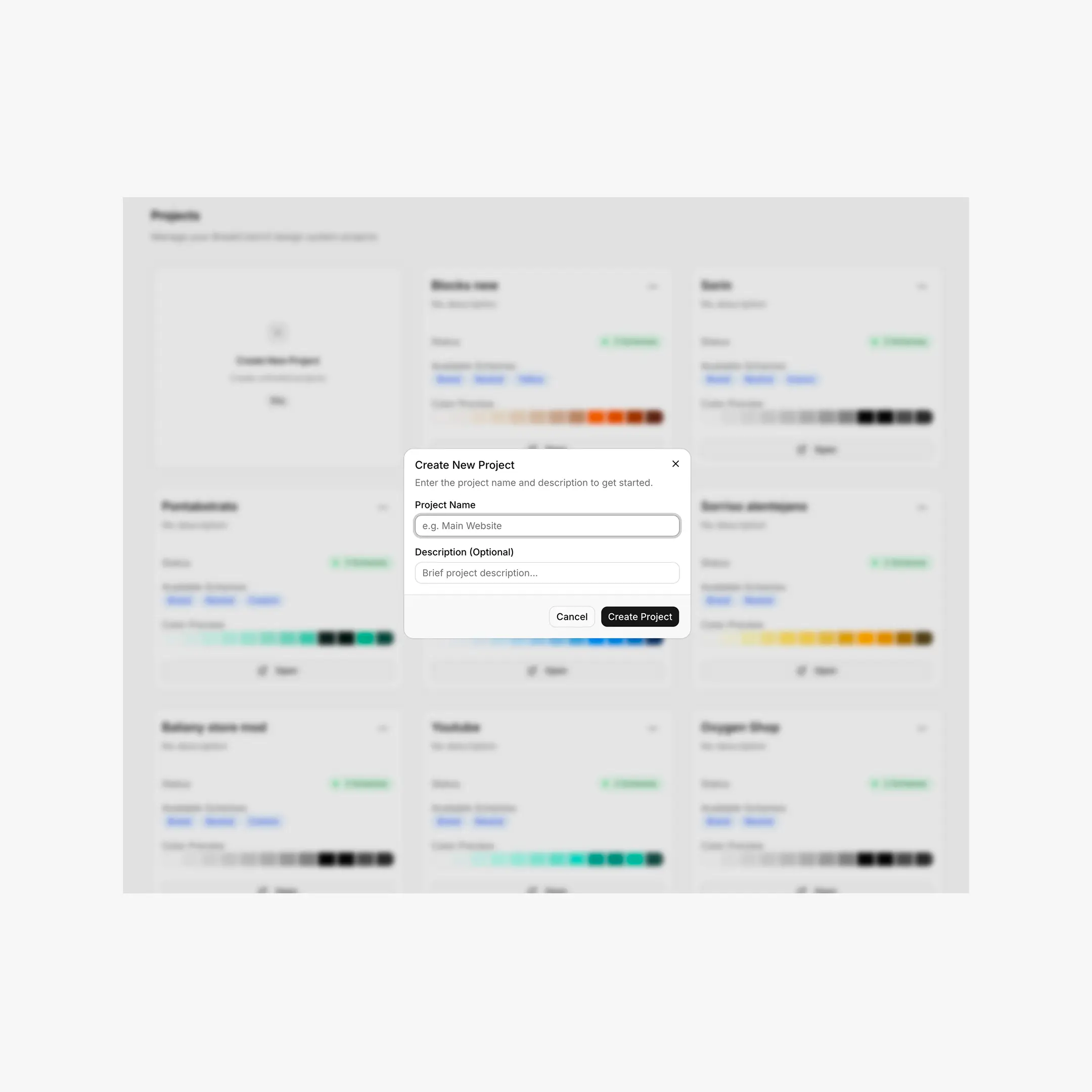
The dashboard's first card is always the Create New Project card. Clicking it opens a modal asking for a name and an optional description.
Quick start
- Sign in and land on
/dashboard. - Click the "Create New Project" card (dashed-border card, top-left of the grid).
- Enter a name — for example "Client X — Marketing Site". Keep it descriptive.
- (Optional) Add a description — a short note about the project.
- Click Create Project — defaults for colors, typography, spacing, and theme are generated automatically.
What gets created automatically
When you create a project, BreakColorUI seeds it with sensible defaults so the editor isn't empty:
- Brand palette with a default brand color (
#0090ff) - Neutral palette preset
- Typography config at scale step M (1.250 → 1.333)
- Spacing config with default fluid clamp values
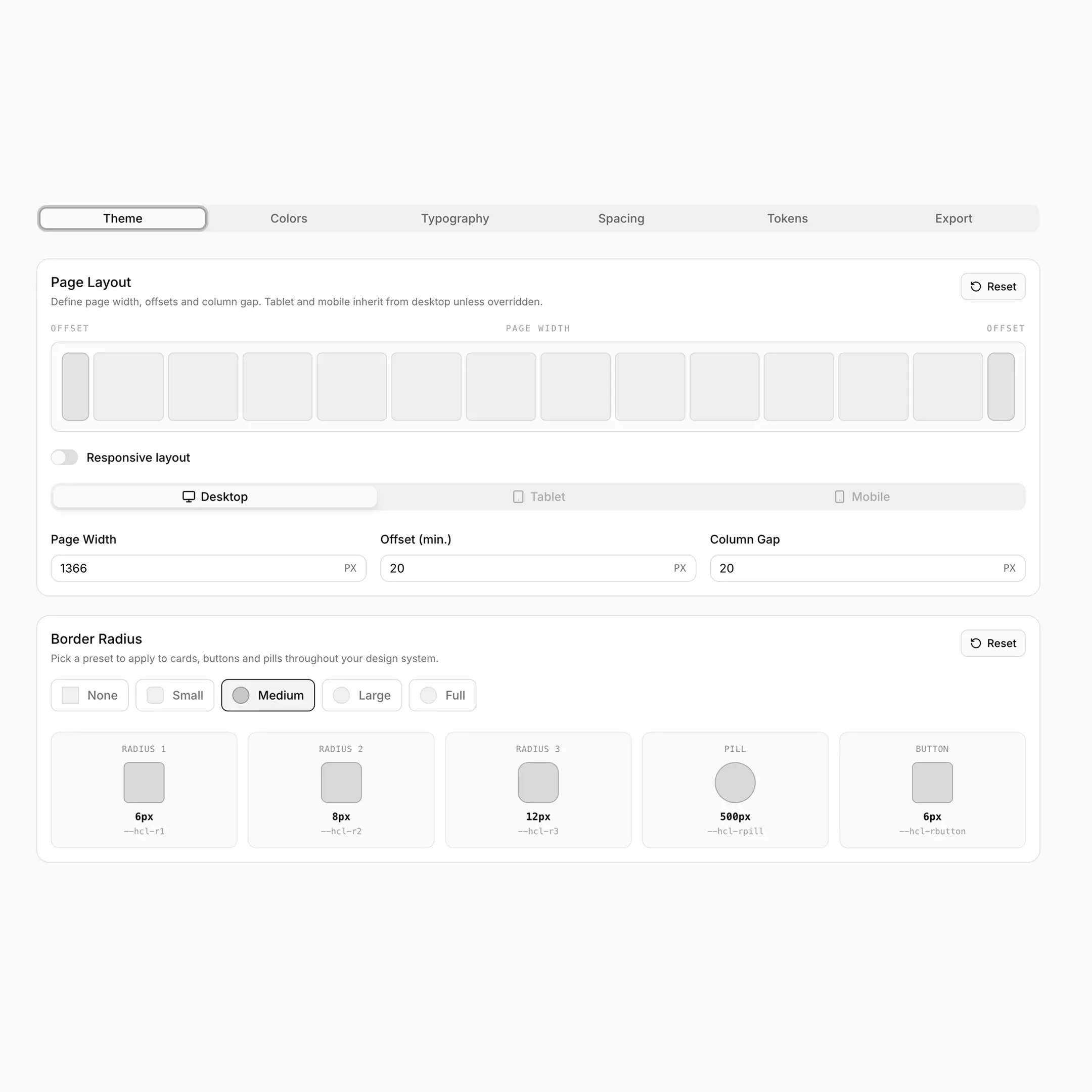
- Theme config with default page width, offset, column gap, and border radii
Project limit reached?
If you're on the free plan and already have one project (active or in trash), the create modal shows a "Project Limit Reached" message instead of the form. From there you can either upgrade to Pro or permanently delete the project sitting in your trash.
Server-side enforcement
Project creation is validated on the server (POST /api/projects). The frontend can't bypass the limit by tampering with state — the API counts active + trashed projects and returns 403 if you're over.
Project editor — six tabs
Click any unlocked project card to open the editor. Six tabs sit at the top, in this order:
Saving changes
Saving is manual, not automatic. The dashboard tracks every field you change and surfaces a global Save button when there are unsaved changes.
How the save system works
- Every edit (color picker drag, slider tweak, text field change) is registered in the save store.
- The Save button in the navbar lights up and shows a count of changed fields.
- Clicking Save persists all changed configs (color, typography, spacing, theme) to Supabase in one batch.
- On success the indicator clears and the button greys out again.
Don't navigate away with unsaved work
If you leave the editor with pending changes, BreakColorUI shows a confirmation dialog. If you ignore it, the unsaved edits are lost — there is no auto-recovery from a previous session.
Managing projects from the dashboard
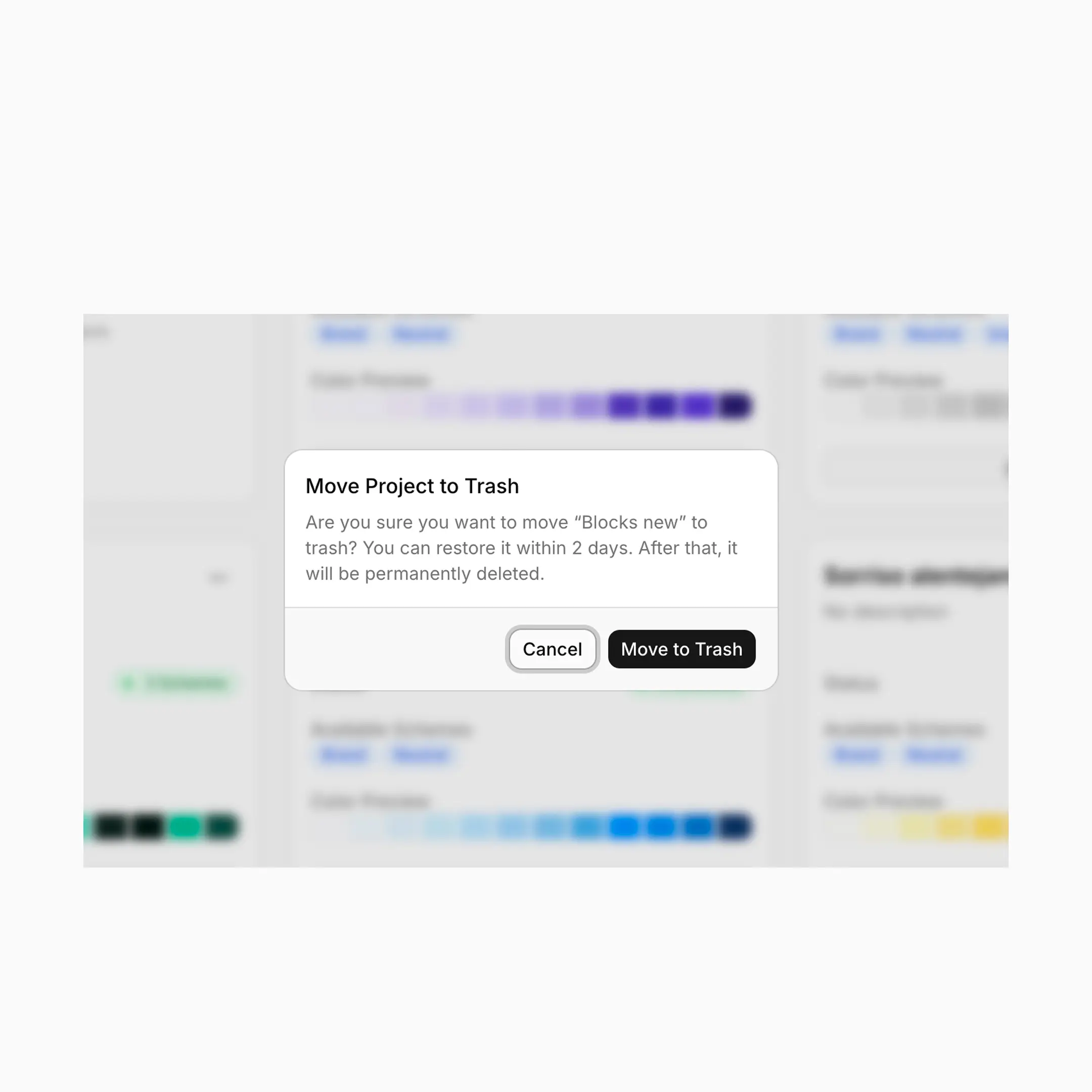
Each project card has a ⋯ (More) menu in the top-right corner.
The Trash
Deleting a project is a soft delete: the project disappears from the grid but stays restorable for 2 days. After that, a daily cron job permanently deletes it.
When trash appears
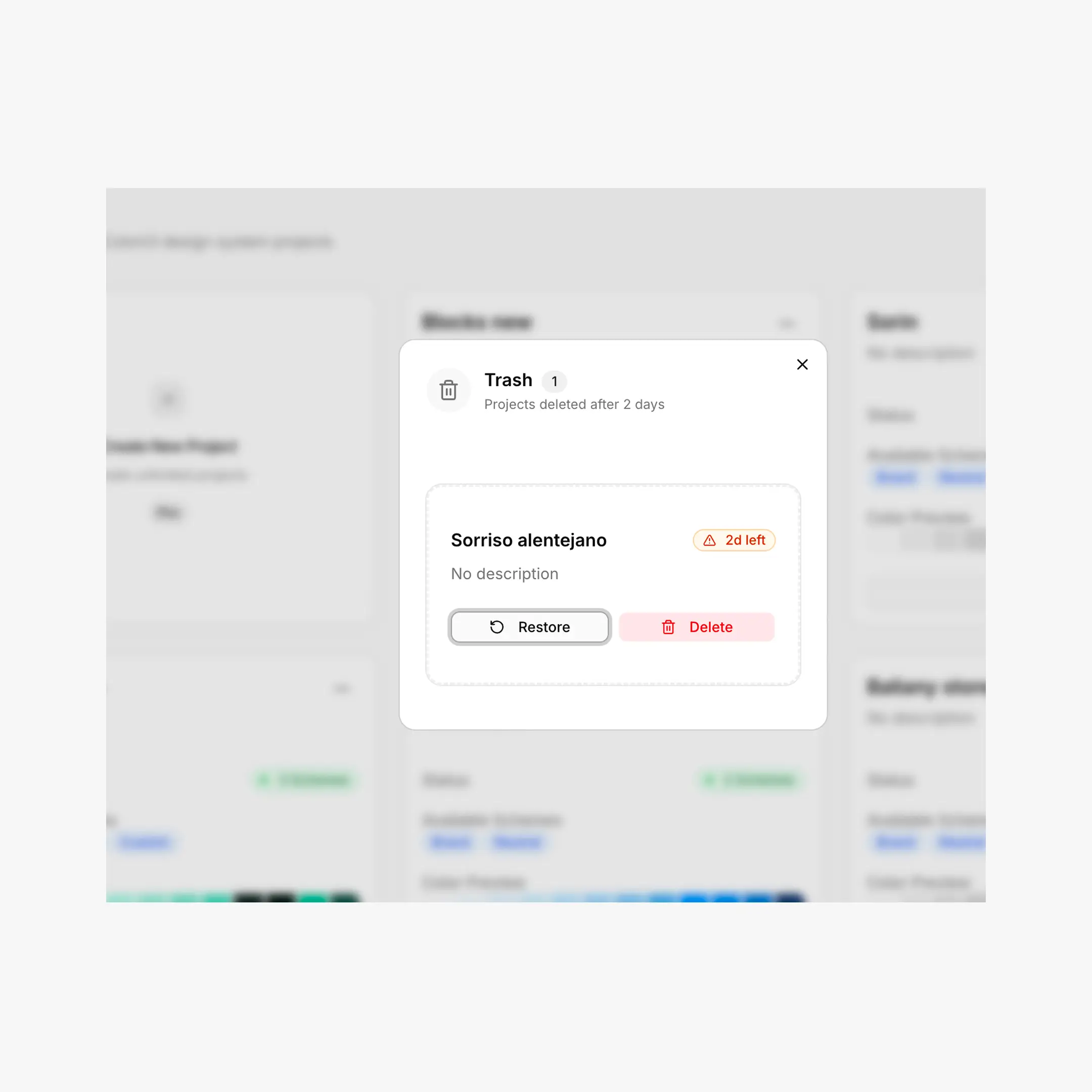
- A Trash button shows up in the dashboard header when you have at least one project in trash, with a badge showing the count.
- Click it to open the Trash dialog — each card shows the project name, days remaining, and Restore / Delete buttons.
- Projects with 7 or fewer days remaining display an amber "expiring soon" warning.
Free plan: trash counts toward your limit
Trashing a project does not free up a slot on the free plan. The dashboard explicitly tells you "X projects in trash — view to free up your slot" when you're at the cap. To create a new project, either permanently delete the trashed one or upgrade to Pro.
Locked projects
If you cancel a Pro subscription while you have more than one project, BreakColorUI does not delete your extras. They are locked — visible in the grid, dimmed, with an "Upgrade to Pro" call to action — and the most recently active project stays open.
Lock vs. delete
- Locked projects show an orange Locked badge and 60% opacity.
- You can still rename or delete a locked project, but you cannot open the editor on it.
- Resubscribing to Pro instantly unlocks all projects with no data loss.
See Billing & Plans for the full Pro-cancellation flow.
Project URL
Each project has a slug derived from its name (e.g. "Client Site 2026" → client-site-2026). The editor URL is /dashboard/<slug>. Slugs are made unique per user automatically — if a slug collides, BreakColorUI appends a number.