Registration & Authentication
Create a BreakColorUI account to start building design systems
Why an account?
BreakColorUI saves every design system in your account: color palettes, typography, spacing, theme layout, and the Breakdance/Oxygen export. Signing in lets you switch devices, share the dashboard with your team's browser, and keep your settings synced with the Chrome Extension.
What you can do with the free plan
- 1 saved project with full access to colors, typography, spacing, theme, tokens, and CSS export
- Chrome Extension sync for the active project
- All features are functional — the free plan limits the number of projects, not what you can build with one
See the Billing & Plans guide for the full breakdown of free vs. Pro.
Sign-up methods
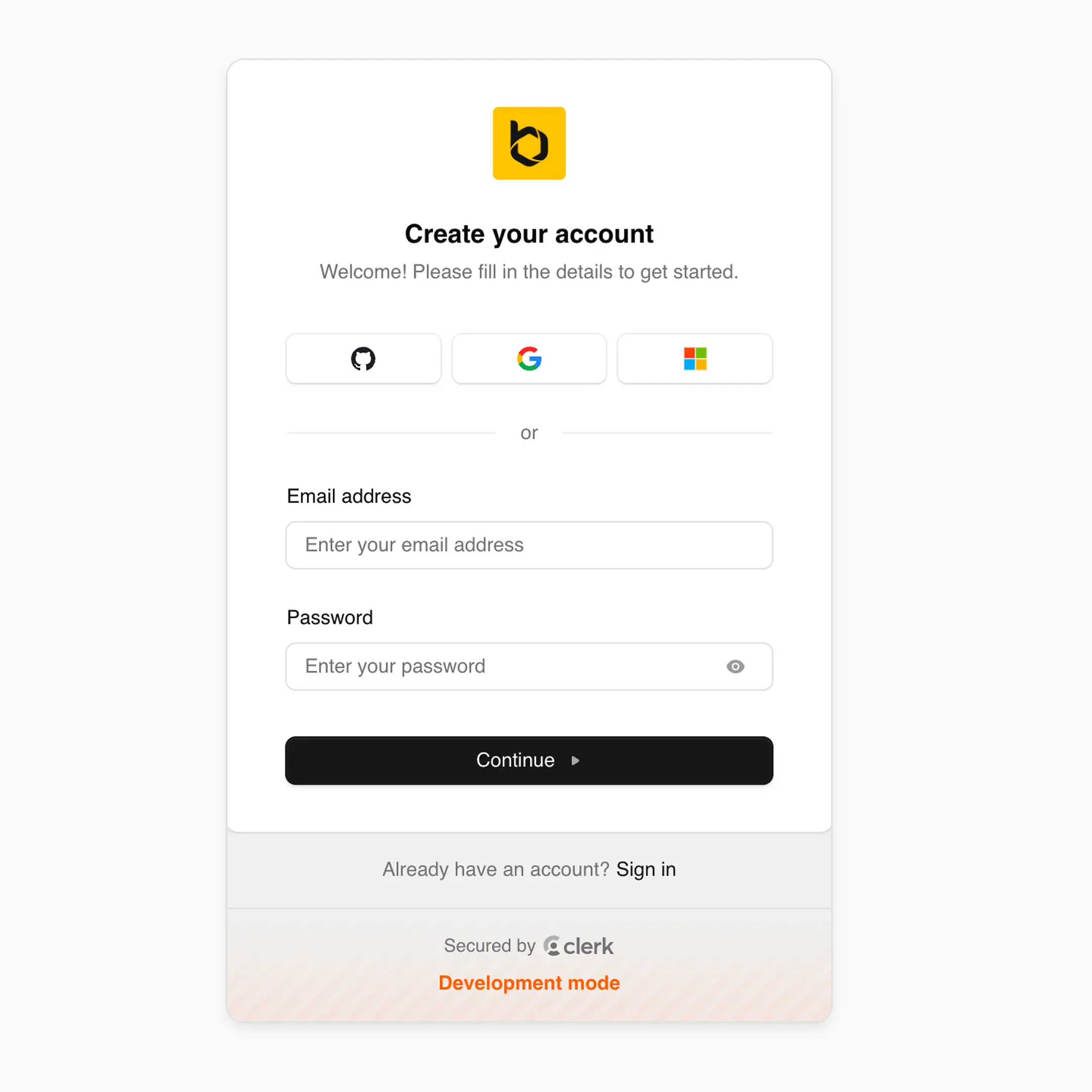
The sign-up form is rendered by Clerk and supports two paths. Pick whichever you prefer — both unlock the same dashboard.
Email verification is required
If you sign up with email + password, Clerk sends a verification code to that address. The account is not active until the code is entered. The email usually arrives within 1–2 minutes — check spam if it's missing.
How to sign up
Step by step
- Open
/sign-up— the link is in the navbar (top right). - Pick a method — "Continue with Google" or fill in email and password.
- Verify — enter the 6-digit code from your inbox (email path only).
- Land on the dashboard — Clerk redirects you to
/dashboardand your Supabase user record is created automatically on first load.
What happens behind the scenes
The first time you land on the dashboard after signing up, BreakColorUI creates a matching record in its database (Supabase) so your projects can be linked to your Clerk account. This is automatic — there is no extra form to fill in.
Race-safe user creation
If you open the dashboard in two tabs at the same time on a brand-new account, BreakColorUI handles the duplicate insert gracefully — only one user record is created.
Signing in later
The sign-in page lives at /sign-in and uses the same methods. Clerk also handles password reset flows from that page if you forget your credentials.
Account, billing, and sign-out menu
Once signed in, click your avatar in the top-right of the navbar:
- Manage account — opens Clerk's account modal (change email, password, profile, connected social accounts)
- Billing — opens the Polar customer portal (or Stripe portal for legacy customers) — see Billing & Plans
- Sign out — ends the session
Protected routes
Anything under /dashboard/* and /admin/* requires an authenticated session. If you visit those URLs while signed out, Clerk redirects you to /sign-in and brings you back after sign-in.