BreakColorUI Sync (WordPress)
Connect a BreakColorUI project to your WordPress site for real-time token sync inside Breakdance and Oxygen
BreakColorUI Sync is a WordPress plugin that connects a BreakColorUI project directly to your WordPress site. Once connected, the same Quick Access modal you'd see in the Chrome Extension is injected into the Breakdance and Oxygen page builders — but for everyone editing the site, not just the user who installed an extension.
When you save a change in the dashboard, the plugin gets it within seconds. No exporting CSS, no resyncing extensions, no clicking Copy & Paste a second time.
What you get
- One-click Connect to any project in your dashboard — no API keys to copy
- Right-click any builder input (color, spacing, typography, radius) → modal opens with matching tokens
- Real-time sync via signed webhook when the dashboard saves
- Auto-updates from
breakcolorui.comlike any native WP plugin - Encrypted API key at rest (AES-256-GCM via
wp_salt), HMAC-signed inbound webhooks
Plugin vs Chrome Extension
Both reach the same end goal — pick tokens directly inside the builder — but the plugin solves problems the extension can't.
You can install both — they don't conflict.
Installation
The plugin distributes a versioned ZIP through a Cloudflare Worker that proxies private GitHub releases. There are two paths:
First-time install
- Download the latest plugin ZIP from your dashboard's plugin section, or use the link provided to your account.
- In WordPress admin, open Plugins → Add New → Upload Plugin.
- Select the ZIP, click Install Now, then Activate.
- A new top-level BreakColorUI menu appears in the WP admin sidebar.
Updates after the first install
After the first install, updates show up in Plugins → Installed Plugins like any WordPress.org plugin. Behind the scenes the plugin checks bcui-sync-updater.geralpixelhunter.workers.dev/info.json every 12 hours; click Check again to force it. You don't have to download new ZIPs manually.
Requirements: WordPress 6.0+, PHP 7.4+, a Breakdance- or Oxygen-powered site, and an account on breakcolorui.com with at least one project.
Connecting to your dashboard
The plugin uses a PKCE-style flow so you never paste an API key. The user clicks one button, picks a project, and the WordPress site is connected.
The Connect flow, step by step
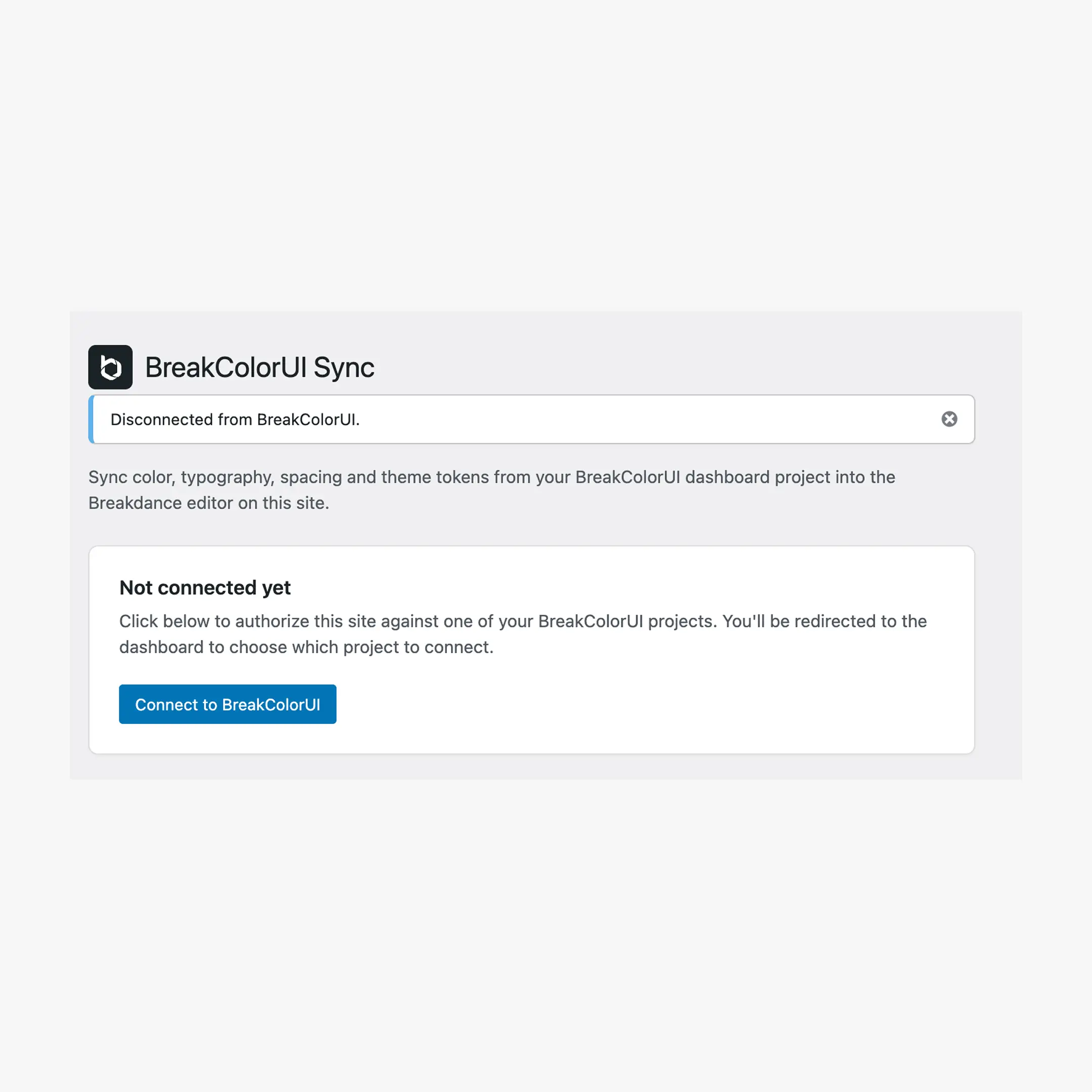
- In WP admin, open BreakColorUI in the sidebar — you land on the plugin's settings page.
- Click Connect to BreakColorUI. The plugin generates a PKCE verifier and challenge locally, hits
/api/connect/starton the dashboard, and redirects your browser to the dashboard. - On the dashboard, sign in (Clerk) if you aren't already, then pick which project to connect.
- The dashboard sends you back to your WP admin with a one-time
statetoken. The plugin completes/api/connect/claimserver-side, exchanging the verifier for a real API key. - The key is encrypted (libsodium / AES-256-GCM, keyed off your site's
wp_salt('auth')) and stored inwp_optionsunderbcui_sync_connection. The dashboard sees a new entry in Connected sites.
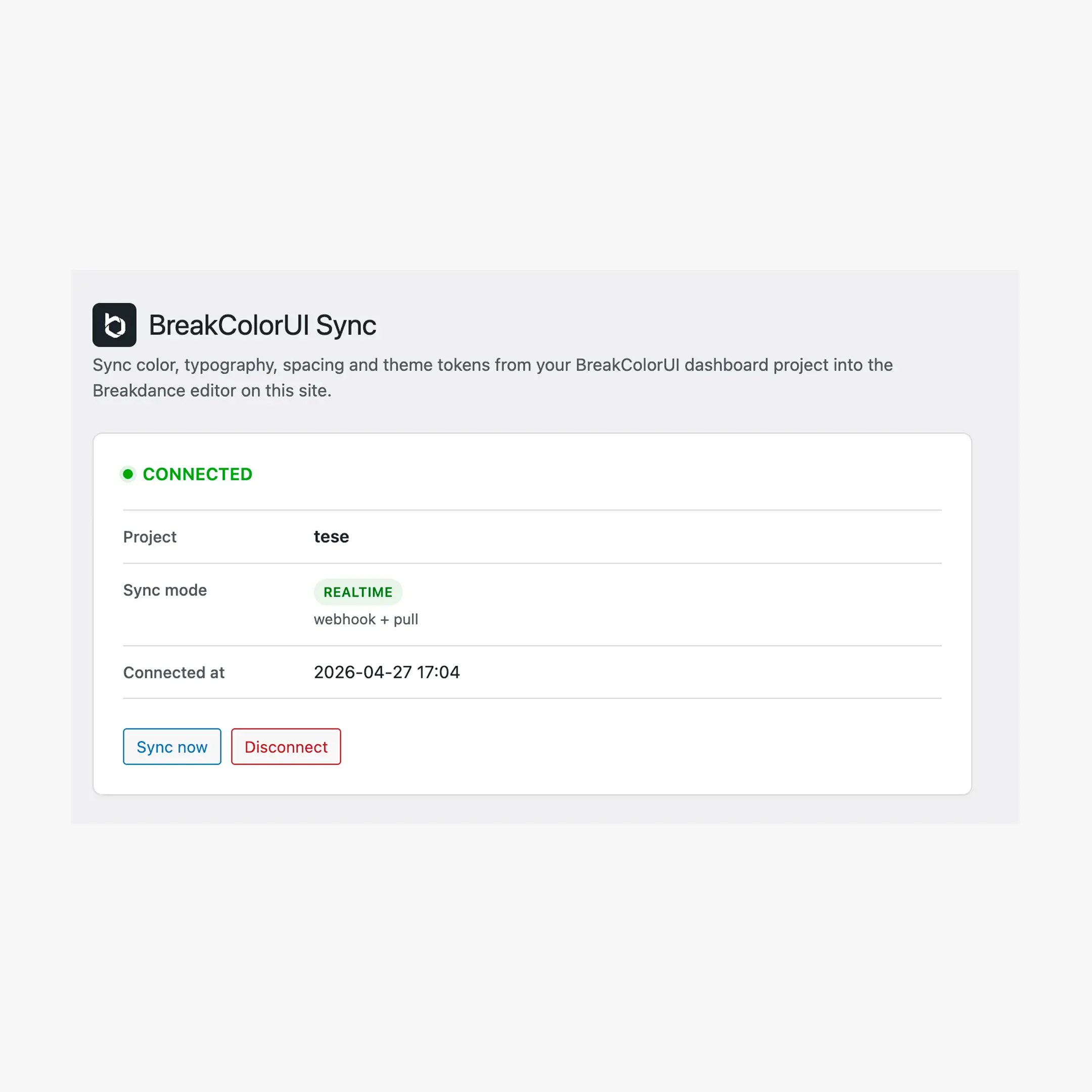
After the redirect lands, the settings page flips to a Connected card showing project name, sync mode (more on this below), and the time you connected. There's no key to remember — you can disconnect any time and the plugin auto-revokes the key on the dashboard side.
Sync mode: webhook+pull vs pull-only
When the dashboard claims your connection, it probes your webhook URL (/wp-json/breakcolorui/v1/webhook) with a HEAD request:
- Reachable (public site) → mode =
webhook+pull→ realtime updates - Unreachable (localhost, NAT, behind a firewall) → mode =
pull-only→ updates onSync nowor every 10 minutes
The connected card shows a realtime or pull-only pill so you know which one your site got.
Real-time sync via webhook
When you save a change in the dashboard, the server sends a signed POST to every connected site running in webhook+pull mode:
POST  https://your-site.com/wp-json/breakcolorui/v1/webhook
Headers:
  X-BCUI-Signature: t=1729972800,v1=<hex>
  X-BCUI-Event: project.updated
  X-BCUI-Delivery: <uuid>
Body:
  { "event": "project.updated", "project_id": "...", ... }
The plugin verifies the HMAC-SHA256 signature against sha256(api_key), rejects deliveries older than 5 minutes (replay protection) and ignores duplicate delivery_id values for 15 minutes (idempotency). Once a webhook validates:
- The local cache (transient, 10-minute TTL) is invalidated.
- A
wp_schedule_single_eventpre-warms the cache 1 second later so the next editor opening Breakdance gets fresh data instantly.
The result: change a brand color in the dashboard, save, and the next refresh in Breakdance shows the new step values. No re-export, no re-publish.
Force a refresh
Click Sync now on the plugin settings page to flush the cache and re-pull immediately. Useful if you're on a private network where the webhook can't reach you, or if you just want to confirm the connection is healthy.
Inside the builder
When the plugin is active and the site is connected, it injects a Quick Access modal identical to the Chrome Extension's — just enqueued by WordPress instead of a browser extension.
How to open the modal
Right-click — that's it. Like the Chrome extension, the modal is bound to your browser's right-click menu inside the Breakdance / Oxygen canvas.
Detection priority — Breakdance unit-input drag containers, spacing-specific selectors, typography selectors, color selectors, radius selectors. Each input type gets the matching token category.
Pasting blocks from the library
The Quick Access modal is for picking individual tokens. To paste a full Breakdance block from the library, copy it from the Blocks site and use ⌘ V (macOS) or Ctrl + V (Windows / Linux) directly on the canvas — see Blocks & Elements Library.
Theme toggle
If the connected project is exported as Full System, the modal includes a sun/moon button to flip between light and dark previews. The choice is shared with the Chrome Extension (same localStorage key) so a user switching tools keeps their preference.
If the project exports Light Only or Dark Only, the toggle is hidden.
Excluded sections
The modal respects whatever you toggled in the Export tab. If a category is unchecked (say, Typography is off), the modal shows a "Not included in export" placeholder for that section instead of an empty box. Re-enable the section in the dashboard, save, and within seconds the placeholder turns into real tokens.
Auto-update
The plugin uses Plugin Update Checker (bundled in includes/plugin-update-checker/) to look for new versions. It polls a Cloudflare Worker — bcui-sync-updater.geralpixelhunter.workers.dev/info.json — that proxies a private GitHub release feed.
From a user's perspective:
- New versions appear under Plugins → Installed Plugins with the standard "Update available" notice
- WordPress shows the changelog in the View version details modal (rendered from the GitHub release notes)
- Clicking Update now downloads
/download/plugin-vX.Y.Zfrom the Worker, which streams the ZIP from GitHub
You can override BCUI_SYNC_UPDATE_URL in wp-config.php if you ever need to point at a staging Worker (rare).
Security model
The plugin only ever calls one server endpoint with the key (GET /api/public/projects/{id}). That endpoint returns project tokens — no user data, no billing data, nothing else.
Troubleshooting
Connect button redirects but never comes back
- Make sure your WP admin is reachable at the redirect URI shown by the dashboard. If you connect from
https://staging.example.com/wp-admin/...the dashboard must redirect there exactly. - Cookie-blocking browser extensions can break the round-trip. Try in an incognito window with extensions off.
- If the URL came back with
?bcui_notice=connect_failed&bcui_reason=..., the reason text after the=tells you what went wrong (e.g.expired-nonce,invalid-verifier).
Modal doesn't appear in Breakdance
- Verify the settings page shows Connected.
- Refresh the Breakdance builder once after connecting — assets are enqueued at page load.
- The plugin only enqueues for users with
edit_postscapability. If you're testing under a custom role, make sure it can edit posts. - In dev / local installs,
BCUI_SYNC_DEBUGis auto-enabled. Checkwp-content/bcui-sync.logand the browser console for[BCUI Sync]traces.
Tokens look stale
- Click Sync now on the settings page to force a fresh pull.
- If your site is in
pull-onlymode (private network), webhooks don't reach you — the cache TTL is 10 minutes by default. - For
webhook+pull: confirm the delivery on the dashboard's Connected sites table. A 5xx response or signature mismatch will retry but eventually back off.
401 Unauthorized when fetching tokens
Either the API key was revoked on the dashboard side, or it expired. The settings page will eventually surface a last_error of unauthorized. Click Disconnect, then Connect again.
Advanced: pointing at a custom dashboard
The plugin defaults to https://breakcolorui.com. In dev / staging / local environments (anything wp_get_environment_type() reports as local, development, or staging), an extra Advanced settings disclosure appears on the settings page where you can point at a different host — e.g. http://localhost:3002 for local Next.js development.
The setting only appears outside production, so end users on a real site never see it. Override BCUI_SYNC_DEFAULT_API_URL in wp-config.php if you need to permanently retarget.