Blocks & Elements Library
Copy production-ready Breakdance and Oxygen blocks straight into your builder, styled with your design tokens
The Blocks and Elements libraries are collections of production-ready Breakdance and Oxygen layouts you can drop straight into your site. Every item is built on top of BreakColorUI's CSS variables, so the moment you paste it, your colors, typography, spacing, and theme apply automatically.
How to access the library
You don't need a separate password. Click Blocks or Elements in the dashboard navbar — the library opens in a new tab and you're already logged in.
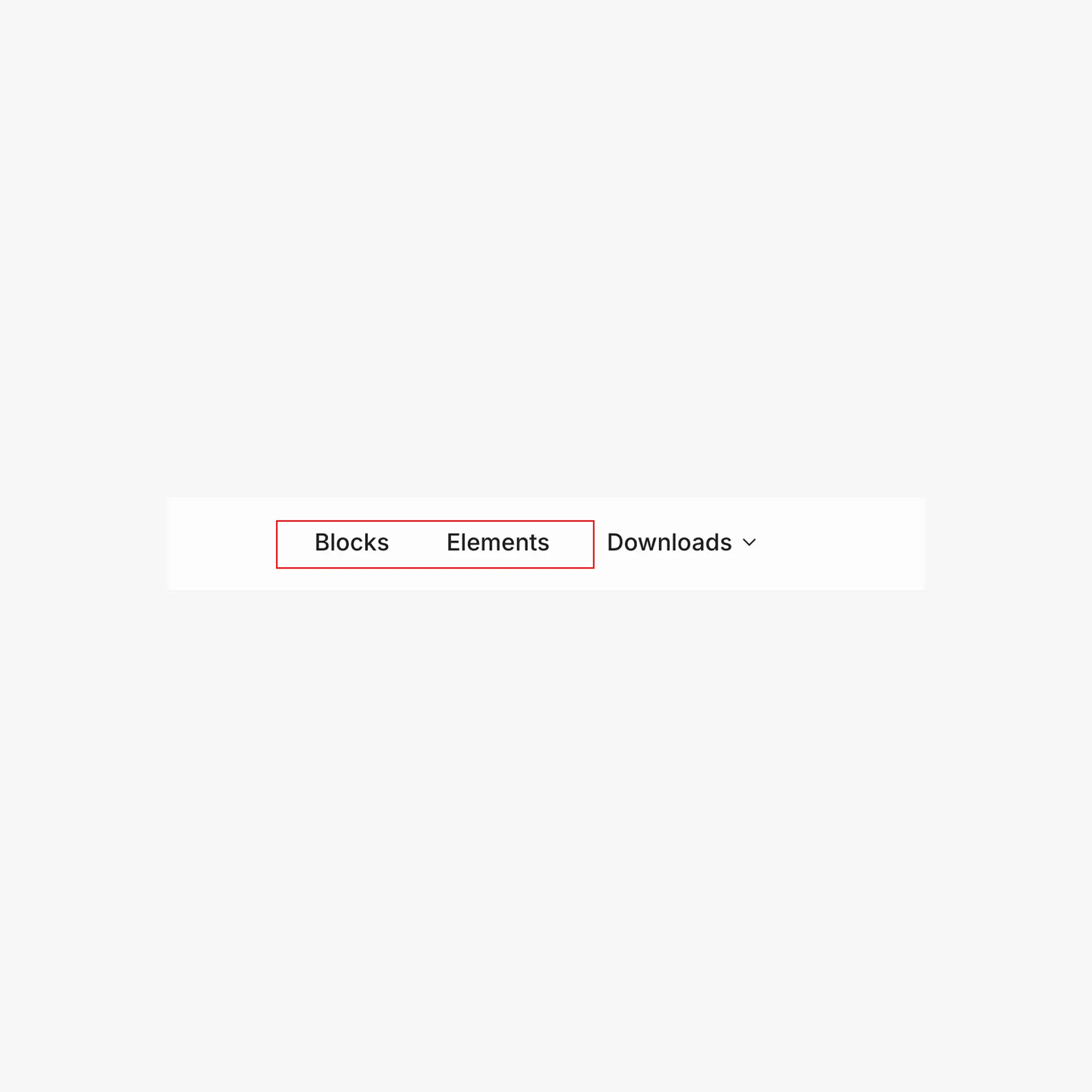
From the dashboard to the library
- Sign in to the dashboard.
- Click "Blocks" or "Elements" in the top navbar.
- A new tab opens, you're authenticated automatically, and the library is ready to browse.
Free vs. Pro
Anyone can browse the library and preview blocks. Copying a block requires an active Pro subscription.
| Free | Pro | |
|---|---|---|
| Browse blocks and elements | Yes | Yes |
| See live previews | Yes | Yes |
| Copy a block / element | No | Yes |
If you're on the free plan, the Copy button is disabled with an upgrade prompt. See Plans & Billing for the lifetime deal.
Copying a block to your site
When you click Copy on any block or element, it's placed on your clipboard ready to paste straight into the Breakdance or Oxygen builder.
Copy → paste workflow
- Browse the library and find the block you want.
- Click Copy on the block card. A small confirmation toast appears.
- Switch to your WordPress site and open the page in Breakdance (or Oxygen) builder mode.
- Click anywhere on the canvas where you want the block to appear.
- Paste with ⌘ V on macOS or Ctrl + V on Windows / Linux.
- The block renders with its full structure — sections, columns, content — and pulls your tokens via the
var(--hcl-...)CSS variables.
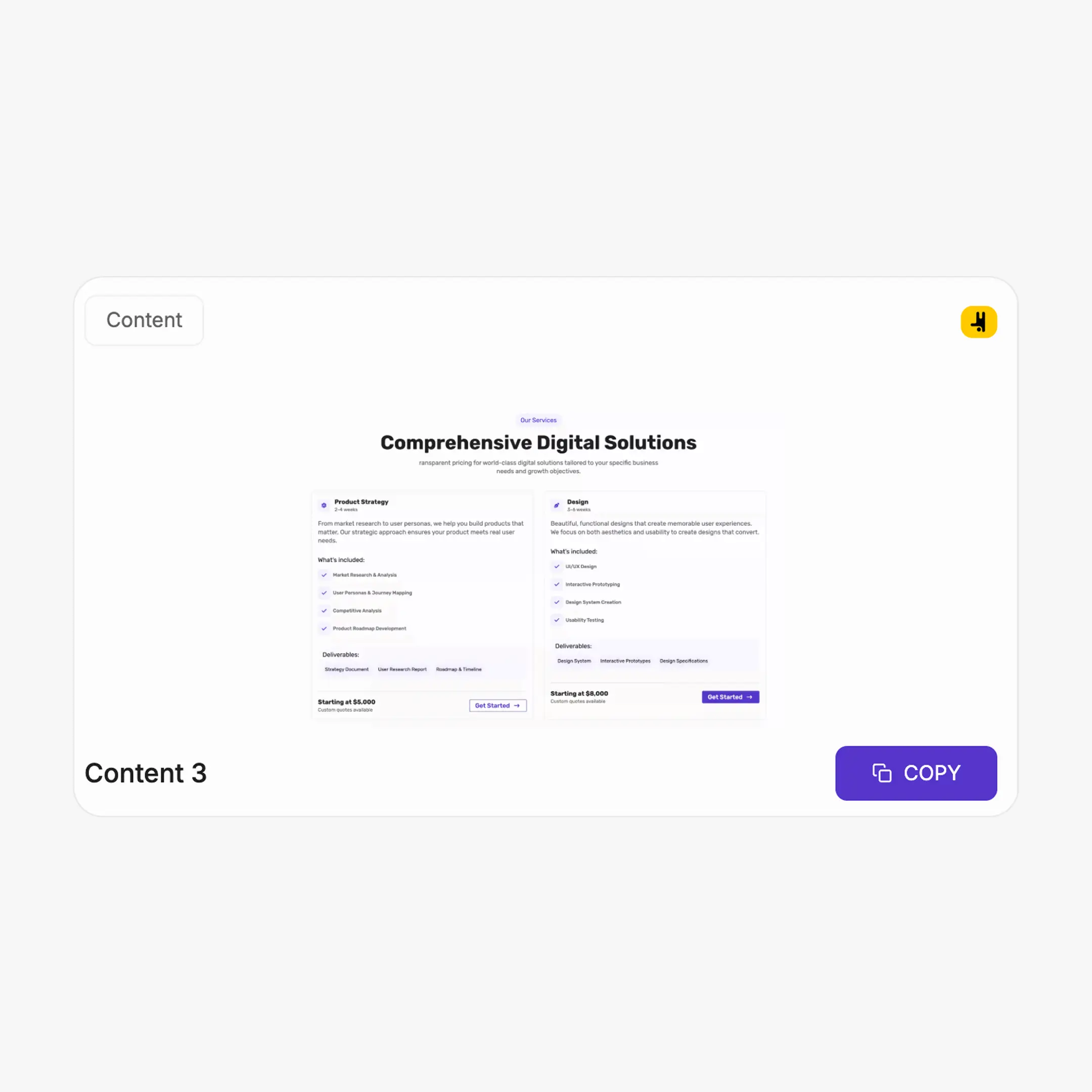
Before you paste — make sure your tokens are loaded
Pasted blocks reference your design tokens via CSS variables (e.g. var(--hcl-brand-9)). For them to render correctly, your site needs at least one of these set up first:
- Global CSS exported and pasted into Breakdance — see Global CSS Setup.
- The WordPress plugin (BreakColorUI Sync) connected to your project, which keeps the CSS in sync automatically.
Without one of these, the block layout still pastes, but colors, spacing, and typography fall back to the builder's defaults.
Working with the library
Filter and search
The library lets you filter by section type, by category, or by free vs. premium. Combine filters to narrow down what's available for the page you're building.
Block previews
Every block is rendered live in a preview iframe with the default BreakColorUI tokens applied. Hover any block to see the title, category, and copy action. Click the preview to open a full-screen view before deciding to copy.
What gets copied
The Copy action puts the builder's native block format on your clipboard — the same format Breakdance (or Oxygen) uses for its own copy/paste between pages. That's why ⌘ V / Ctrl + V works directly inside the canvas.
Copy doesn't include CSS — only structure
The copy payload is the block's element tree. The CSS that styles it — the var(--hcl-...) references — comes from your own export, not from the library. This is what lets the same block look different on every connected project.
Troubleshooting
Pasted block looks unstyled
This almost always means your design tokens aren't loaded:
- Check Breakdance Global CSS — see Global CSS Setup.
- If you use the WordPress plugin, open the plugin settings page and click Sync now.
- Hard-refresh the builder (Ctrl + Shift + R / ⌘ Shift + R).
Copy button is disabled
You're on the free plan. Upgrade to Pro from the pricing page — see Plans & Billing.
The library opens but I'm not signed in
- Sign into the dashboard first, then click Blocks or Elements from the navbar.
- If you've been idle for a while, refresh the dashboard tab once before clicking again.