Global CSS Setup
Paste your exported BreakColorUI tokens into Breakdance so var(--...) actually resolves
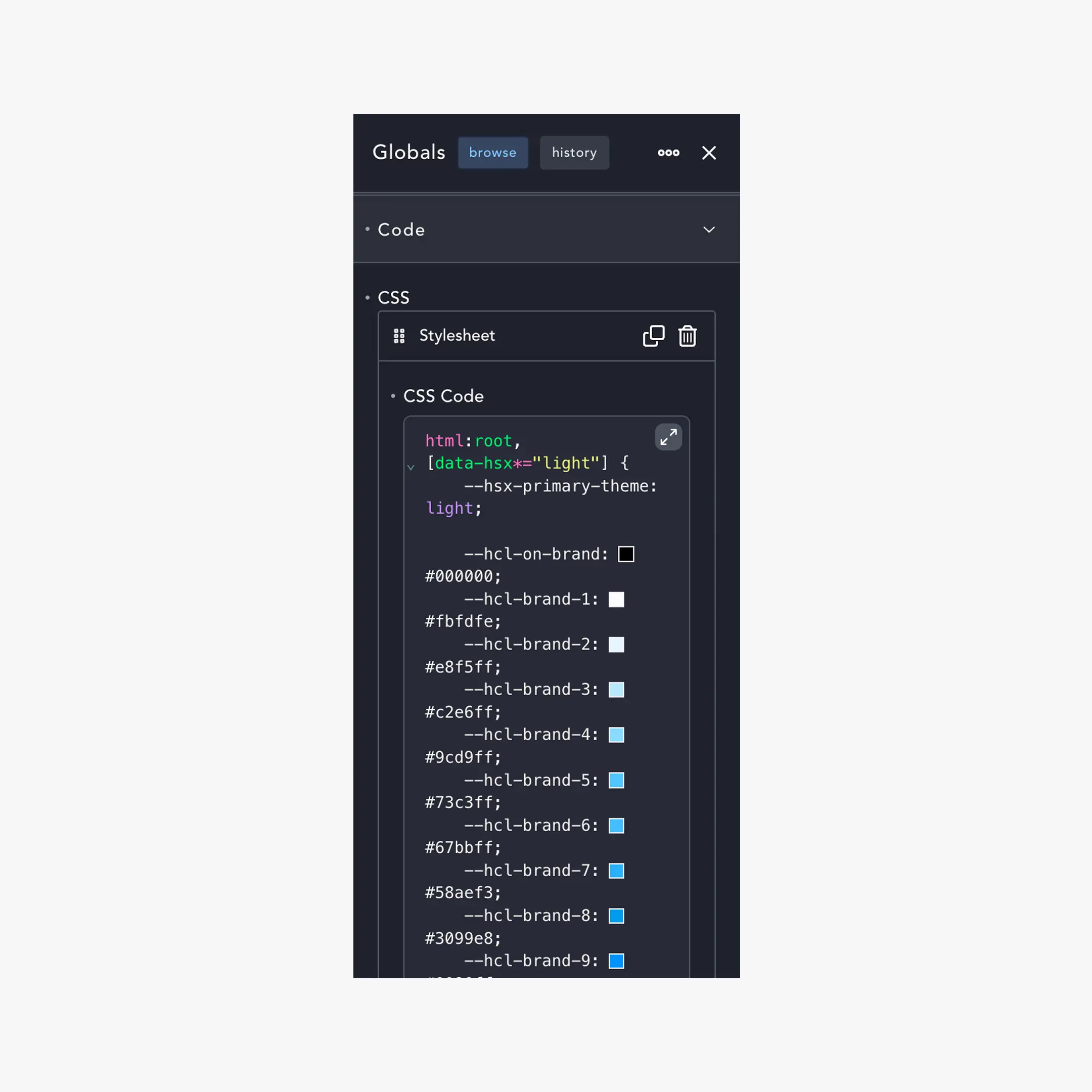
This is the simplest of the three integration paths: export the CSS once, paste it into Breakdance's Custom CSS box, save. Every page on the site now has access to var(--hcl-brand-9), var(--hfs-h1), var(--hsp-m), and the rest of your design system.
It's also a hard prerequisite for both the Chrome Extension and the WordPress plugin — those tools insert var(--...) references, but the variables themselves live in your CSS.
When to use this method
In short: this is the foundation. The extension and plugin make picking tokens easier — they don't replace pasting the CSS itself.
Step-by-step
From export to live in five minutes
- Export the CSS — In your project's Export tab, pick your platform and theme output, then click Copy & Sync. The full CSS block is now on your clipboard.
- Open Breakdance settings — In WordPress admin, go to Breakdance → Settings → Global Settings → Custom CSS.
- Paste the CSS — Drop the entire copied block into the Custom CSS textarea. It already includes the
:root { ... }selector, so don't wrap it in anything else. - Save — Click Save at the top of the page.
- Verify — Open any Breakdance page in the builder, edit any element's color, set the value to
var(--hcl-brand-9). The element should pick up your brand color immediately.
That's the whole flow. If step 5 worked, you're done.
Verifying it works
The fastest test is in the Breakdance builder itself:
- Open any page in the builder.
- Add a Text element (or pick an existing one).
- In the Design tab, click the text color picker and switch it to Custom.
- Type
var(--hcl-brand-9)and tab out. - The text should turn your brand color.
If it doesn't, check the troubleshooting section below.
You can also verify outside the builder by viewing the live page:
- Open the rendered page in a browser
- Open DevTools → Inspect any element
- In the Computed panel, look for any
--hcl-*,--hfs-*, or--hsp-*variable - It should be defined on
html:rootor[data-hsx*="light"](or both)
Re-export after every dashboard change
The biggest gotcha: the CSS doesn't update on its own. Editing colors in the dashboard doesn't change the live site until you re-paste the export.
The Global CSS approach is one-way and manual
- Change a brand color in the dashboard → save the project → the live site still shows the old color until you copy & paste a fresh export.
- This is by design; Global CSS is purely declarative. If you want changes to flow automatically, install the WordPress plugin instead — it pushes updates via webhook.
A common workflow: build the design system, export once, paste once. Then iterate. When you ship a new version, copy & paste again. For teams that change tokens often, the WP plugin removes that step.
Using variables in Breakdance
Once the CSS is pasted, you can drop variables into any Breakdance field that accepts custom CSS:
/* Color fields (text color, background, border, etc.) */
var(--hcl-brand-9)
var(--hcl-neutral-12)
var(--bde-brand-primary-color)

/* Size / spacing fields */
var(--hsp-m)        /* component spacing, medium */
var(--hss-l)        /* section spacing, large */
var(--hfs-h1)       /* h1 font size */

/* Border radius */
var(--hrd-m)
var(--hrd-pill)
Most Breakdance fields accept these directly. Some controls require flipping into "custom" mode first (the Chrome Extension and WP plugin do this automatically when you click a token; manual paste, you do it yourself with a small toggle next to the field).
Theme switching (Full System exports)
If you exported in Full System mode, the CSS includes both light and dark blocks gated by Breakdance's data-hsx attribute:
html:root,
[data-hsx*="light"] { --hcl-brand-9: #0090ff; }

:root[data-hsx*="dark"],
[data-hsx*="dark"],
[data-hsx*="invert"] { --hcl-brand-9: #0090ff; }
Breakdance flips the data-hsx attribute when you toggle modes — no extra setup required from you. The same var(--hcl-brand-9) resolves to the correct value for whichever theme is active.
If you exported Light Only or Dark Only, only one block ships. Use those for sites that don't switch themes.
Troubleshooting
var(--hcl-brand-9) shows up as plain text or no color
- The variable isn't defined. Re-paste the full CSS export and save again. Make sure you didn't accidentally paste only a fragment.
- The selector doesn't match. The export uses
html:rootand[data-hsx*="light"]. If your theme overrides:rootsomewhere with a more specific selector, the override wins. Move the BreakColorUI block to the bottom of Custom CSS.
Save didn't persist / changes vanished
- WordPress sometimes loses the textarea content if there are PHP/JS errors on the page. Open the browser console while saving — any 500 response means something else is failing.
- Object cache can serve stale CSS. If you use Redis / Memcached, flush the cache after saving.
- Some security plugins strip
<style>or:rootpatterns from option saves. Disable them temporarily and re-save.
The dark block isn't kicking in
- Confirm the page actually carries
data-hsx="dark"onhtmlor a wrapper. Breakdance does this when you toggle a Section into dark mode. If you're not using Breakdance's theme controls, the dark block never matches. - If you want a forced dark site, set
data-hsx="dark"manually on<html>(theme JSON, page-level CSS, or a small<script>). - Mobile preview in the builder doesn't always reflect
data-hsx— view the live page to confirm.
Some variables exist, others don't
- The Export tab lets you toggle categories on and off. If
--hsp-mis missing, Spacing was probably unchecked. Re-export with all needed sections enabled. - Custom color schemas only ship if the Custom checkbox is on and you have at least one custom palette in your project.
Cache (Cloudflare, host, plugin) keeps showing old CSS
- Purge your CDN / host cache after each re-paste.
- Browser cache: hard-reload (Cmd+Shift+R / Ctrl+Shift+R).
- Page builder cache: in Breakdance, click Save on the page itself, not just on Settings — Breakdance regenerates page CSS on page save.
Comparison with the other methods
Most projects end up using two of the three: Global CSS (always) plus either the extension or the plugin (depending on team size and workflow).